
This tutorial will guide you through the process of cutting out parts of photos and other images for use separately. If your final image has a transparent background after completing this tutorial (i.e. you have no plans to add a background) then you should save it as a PNG or GIF (preferably PNG) – for more information see Myrddin’s FileType tutorial.
1. Find your image – i’ll be using this stock photo.
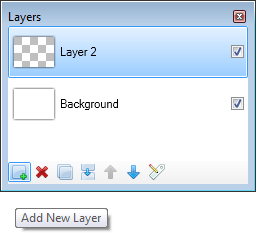
2. On a new layer with a relatively thin width, (depending on the size of your image) cover the perimeter of the part of the image you wish to cut out with the brush and line tools being careful to leave no gaps.
3. Now select the magic wand tool (any tolerance below 60% should work fine) and click inside the outline.

4. Now hold down Ctrl + I to invert the selection, and then select the background layer.
5. Now press the “delete” key and remove the layer you use to draw the outline, then crop the image to the part you have cut-out.
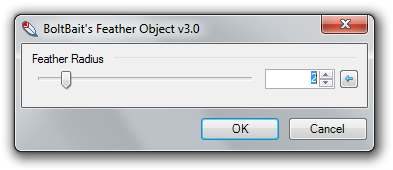
6. Use the feather plugin to make the edges less aliased.


August 12, 2010 at 3:17 am
Thank you for a simple explaination!
Pat
September 7, 2010 at 9:12 pm
Thanks for the nice tutorial. I’d like to suggest that you use a font other than the one you did. A capital “I” looks just like a lower case “L”. It took me a couple tries to figure out to ue Ctrl+I and not Ctrl+l…but then it might be just my ignorance.
September 9, 2010 at 4:58 am
After deleting background I get this massive checkerboard. My cut out image is not by itself, the checkerboard IS the new image as well. How do I get rid of the checkerboard and leave only the cut out image?
September 11, 2010 at 7:02 pm
@peter
The checkerboard isn’t part of the image, it’s just there to show that it’s transparent.
September 12, 2010 at 4:53 am
When I try to paste the cut-out image onto another image the checkerboard goes with it. The checkerboard is the size of the crop.
September 14, 2010 at 8:17 pm
Yes, like Peter said, the checkerboard needs to be eliminated. But how?
September 15, 2010 at 11:30 am
Add new layer, then paste it
September 30, 2010 at 8:52 pm
@Peter and @Larry, you should spend some time playing around with layers to see how they work. Try cutting image parts and placing them on different layers, play with layer properties, put different images on top of each other and underneath, etc etc.
You will learn a lot about layers in general and it will be a good use of your time.
The checkerboard is a unique background with represents transparency.
October 5, 2010 at 1:31 am
The tutorial is great! Thanks
October 11, 2010 at 2:22 am
Hello, thank you for yur good explaination.
But if it is a man or somthing more complex than you used for the example (pc portable),
how can we do “cut” it please ? it is the same way ?? I have to draw lines like for the xempale ?
Thank you dude !!
Iskander71
October 28, 2010 at 9:37 pm
be sure after you remove the background or whatever you are removing, to retain its transparency, save as .png or .gif. .jpg will not retain transparency.
November 27, 2010 at 6:00 pm
@Bill Mosca: Done (finally). Garamond is now used for key combinations.
December 30, 2010 at 9:30 pm
I am 57 yrs. old not an excuse but I can’t get the hang of using the layers thingy!!! I am guessing that to combine parts of 2 pics I need to use layers. But I’m not able to get both pics into the layers box in the bottom right of the screen I think that if I get both pics in the layers box, I can do something with it.
Trying, I really want to learn to use this!!
[email address removed]
January 9, 2011 at 9:01 pm
Keith, in the layers box, click on add new layer (the button is a white square with a green plus sign on the corner). That will give you a new layer. Then you can paste your image onto the new layer.
Each layer is like a sheet of clear plastic film, like the kind used on classroom projectors. You can then paint or paste an image onto each “transparency sheet”, and change the opacity (or transparency) of the paint or image, or the layer as a whole, to determine how much of the layer underneath shows through. They’re stacked on each other like papers, and you can even move the layers up or down to put them over or under the other layers. I hope that helps.
January 31, 2011 at 3:43 pm
When I select the inside of the image narrow lines appear all over the image. It is not selecting everything inside the paint lines. How do I get to to do what your tutorial does?
January 31, 2011 at 4:06 pm
I didn’t use a new layer. Sorry for not following directions.
February 1, 2011 at 2:41 am
wheres the brush and line tool..
February 5, 2011 at 1:16 pm
brush and line tool located in toolbox on left hand side..lo
February 13, 2011 at 11:11 am
I’m not seeing the brush and line tool? I have a brush by itself, or I have a line/curve…is it the line curve?
February 25, 2011 at 7:03 pm
@larry and @peter I’m dealing with the same problem here. How to get rid of the the transparent layer the checkerboard?
How to paste just the cut-out image?
please guys help me out here.
August 10, 2011 at 7:26 am
@Tyler, the checkerboard part is transparent.So if you see the checkerboard,think of it as….not there.Say you see the checkerboard, you put the image on a website with a colored background and you see the colors of the background where the checkerboard was.Like I said, the checkerboard is transparent.
September 29, 2011 at 9:21 am
i draw a paint line around the object on the new layer, magic wand the image, inverse selection, and then delete the background layer, all i am left with is the transparent checkers and the paintbrushed out line, im sure im missing something here.
October 2, 2011 at 3:32 pm
Hi–I’m so new to Paint.net, I squeak. So when I managed to get an image on the checkerboard that meant I’d licked the transparency bit (by returning over and over to the tutorial!
) I thought I was home free. Not. I cannot for the life of me transfer it onto the image I want it on. I used a new layer, but couldn’t cut or paste or cuss enough to get it to go anywhere near the first image. Help, PLEASE…
November 16, 2011 at 6:36 am
It seems so easy but I’m not getting anywhere.
November 30, 2011 at 3:27 am
Looking at the original wording and the resulting comments, I would suggest rewording the tutorial as follows:
1. Find the image you want to work with and save it on your computer.
2. Open the image in Paint.Net to become the background layer.
3. Create a new layer. Select the background layer and make a copy of the original image. Paste the copy into a new layer. You should have two layers now. Work with the second layer by clicking on the name of the layer to select it.
3. Select the new layer and use the lasso tool (different tool – easier to use) to draw a loose lasso around the part of the image you want to work with. Once you release the mouse button on the lasso, the lassoed area will be highlighted. Select Copy or Ctrl-C.
4. Create a new layer and paste (Ctrl-V) the image into the new layer. Don’t work in this layer. It is your fall back position if you really mess up later on.
5. Create another new layer and paste the same image into this new layer. Save the first paste and work on this second one. You should have four layers open by now.
5. Select the most recent layer and untick the rest of the layers to turn them off. Use the Magic Wand to select the unwanted pixels surrounding the object of interest in this last layer. Click near your object of interest but not inside the object’s boundary. Adjust the tolerance of the tool on the toolbar until you get the hang of that tool. Lower tolerance numbers mean fewer pixels selected. Click-evaluate-delete. Continue all the way around the image. If you make a horrible mistake, use the Undo or Ctrl-z as many times as you need to.
6. Use the lasso tool again to delete the artifact pixels left behind by the Magic Wand. It is a good tool but not perfect.
7. Select this entire image and paste it into another new layer.
8. With the newest layer selected, use the Feather add-on to finish your image.
NOTE 1: The checkerboard pattern shows where there are no pixels IN THAT LAYER. That shows you where other layers will show through if they are behind the current layer.
NOTE 2: In order to work in a layer, you have to have it selected. If something bizarre happens, you might not be working in the layer you think you’re working in.
December 4, 2011 at 7:24 pm
These instructions sound like I can follow them. I too have been having a frustrating time with this. But here’s my question – I get that the checkerboard pattern that shows around the cutout I’ve pasted over another layer is transparent and won’t show in the final product. But I am trying to insert a face on another figure and I really need to see what is under that checkerboard in order to know that I have the face placed in the exact position I want, with respect to the rest of the figure that it is being pasted to. Can that be done? Somewhere along the way I had it like that – but for the life of me I cannot dupicate how I got it to do that for me. Any help? Thanks!
December 14, 2011 at 1:36 am
How about a free move crop? Example I want to crop the exact shape of the apple? :/
January 19, 2012 at 7:19 am
Hi…thanks for putting the video. The video was so fast that I couldn’t keep up, even after pausing and viewing several times. I keep getting straight lines, not the curves that I see you easily draw on your video.
January 25, 2012 at 11:49 am
I’m new to Paint.net (less than a week) and like Peter, Larry, and Tyler above I had the same issue with the checkerboard. When I copied the layer and tried to paste it onto the original image it showed the checkerboard. I think what this tutorial lacks is remembering that it is supposed to be a BEGINNERS tutorial and many of us are not familiar with all the tools that Paint.net uses or even where they are. It took me about 10 minutes to find the Feather tool and even then I don’t think I got it to work as it should and gave up. With the checkerboard issue though, with experimentation I found two ways to eliminate it.
1. Use the magic wand and click on the checkerboard. Do CTRL-I to invert the selection, and then CTRL-C to copy. then when you paste it onto another image you only paste the laptop as that is all that was copied.
2. Do Ctrl-A to select the whole layer (checkerboard and all). Add a new layer above the image you want to add the laptop to. and CTRL-V to paste the copied layer onto the new layer. On a new layer the checkerboard does not show.
Telling Beginners that are reading a Beginners tutorial to help familiarize ourselves with Paint.net to “spend some time playing around with layers to see how they work” is unhelpful, when ideally how to eliminate the checkerboard should have been included in the tutorial. We are beginners after all.